
Documentation
Simple pricing for every Discogs seller. Pay once per year. No hidden fees, no surprises. Just fast, automated Discogs imports

Getting started
- Installing Discowoo
- Activating your license
- Connecting to Discogs
- First import overview

Features & settings
- General plugin settings
- Smart templates
- Auto repricing
- Automatic image import
- Category mapping
- Filters & sorting
- Cache & advanced tools
Managing products
- Importing products
- Updating existing products
- Managing sync behaviour
- Troubleshooting & errors
- FAQs
1. Getting Started
1.1 Installing Discowoo
1. Log into your WordPress dashboard
2. Go to Plugins → Add New → Upload Plugin
3. Upload the discowoo.zip file
4. Click Install, then Activate
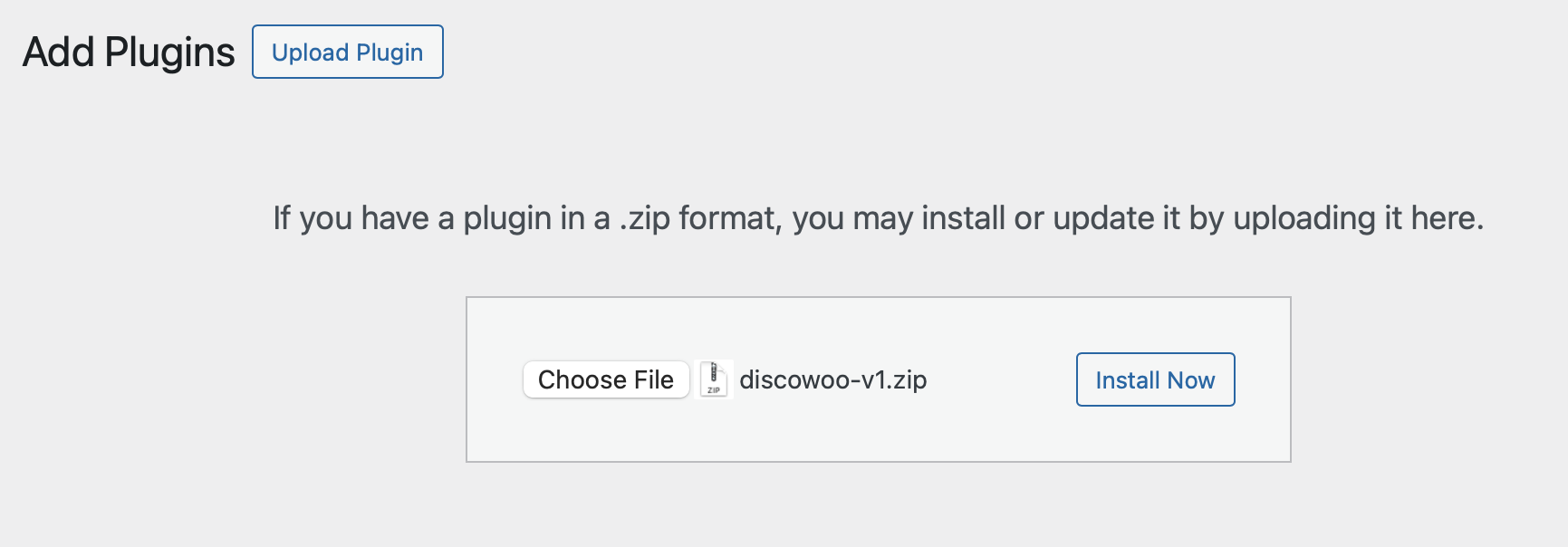
Once activated, a new menu item named Discowoo will appear on the left of your WordPress menu.
1.2 Activating your license
Before using the plugin, you need to activate your license.
1. Open Discowoo → Settings
2. Under License, paste your license key
3. Click Activate License
A green indicator will confirm that your license is valid.
Your license gives you:
✔ Updates
✔ Support
✔ Importing & all features
1.3 Connecting Discowoo to your Discogs Account
Step 1 - Create your Discogs API Token
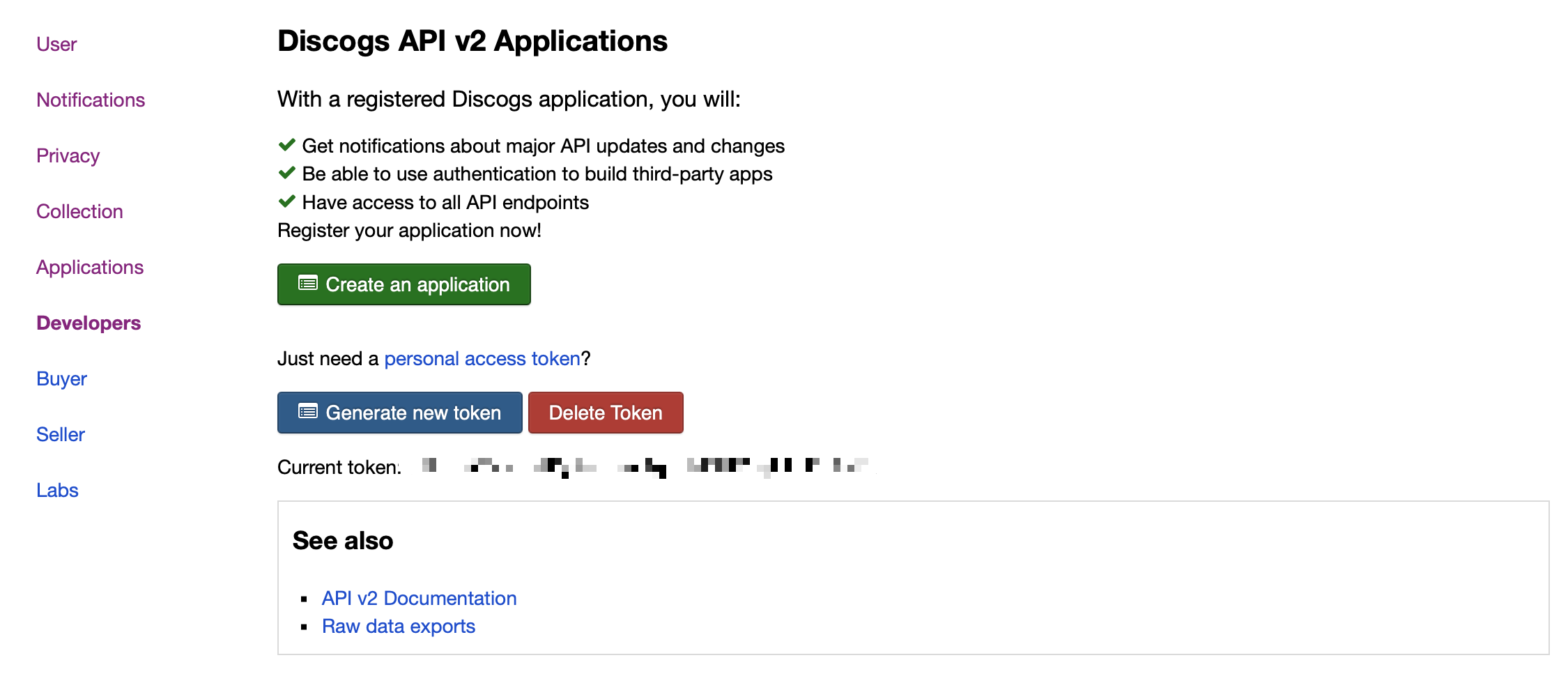
1. Login to your Discogs account and navigate to Settings → Developers
2. Click Generate new token
3. A new API token is created
Step 2 - Find your username
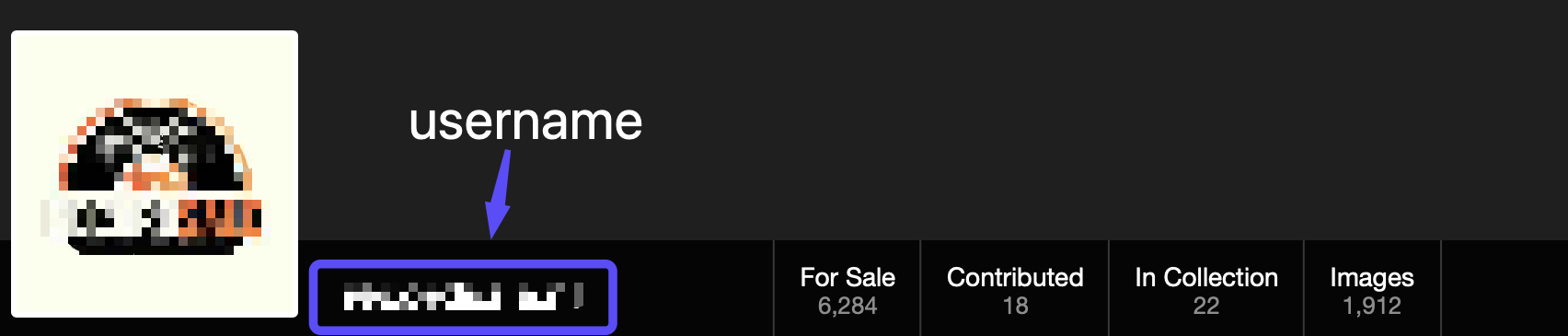
1. In Dicogs, go to View my profile
2. Your username appears right next to your profile picture
Step 3 - Enter your username and API token in Discowoo
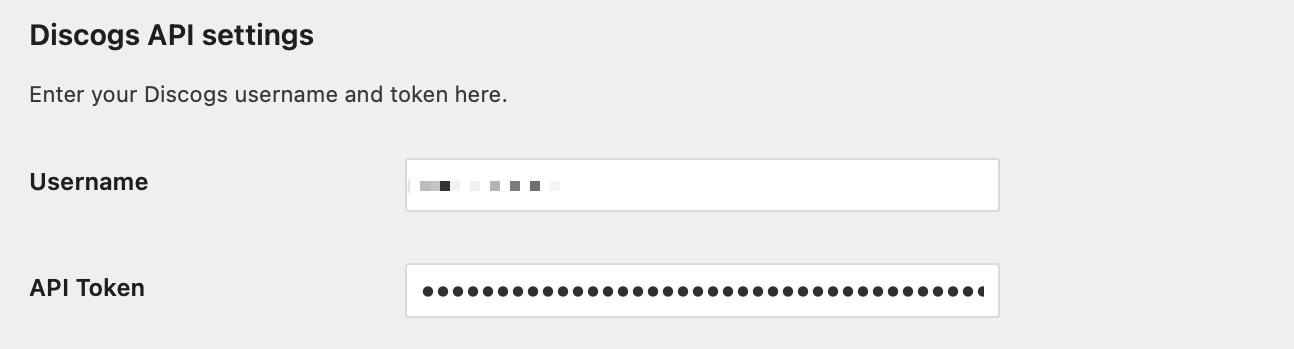
1. In WordPress, go to Discowoo → Settings
2. Enter your Username and API Token
3. Save the settings
Once saved, Discowoo is fully linked to your Discogs account.